User Guide · iPad & iPhone
iFly Weight & Balance
Build a load, check it against your aircraft’s limits, and send a signed load manifest, all in a couple of minutes.
Revision 28OCT26
1 · Getting around
Built for your aircraft, organized in three tabs
iFly is programmed for your aircraft’s exact make, model and serial number, so every calculation uses your aircraft’s real data. Everything you do happens on one of three tabs at the top of the screen.
Calculate
Enter crew, passengers, cargo and fuel. The graph and totals update as you type.
Manifest
Fill in trip details, sign, and send or save the load manifest.
Preferences
Set up defaults, standard weights, email addresses, and switch aircraft.
Toolbar buttons at a glance
The buttons in the top corners change with each tab.
| Button | Tab | What it does | |
|---|---|---|---|
 | Reset | Calculate, Manifest | Clears the entries on that tab so you can start fresh. |
 | Configurations | Calculate | Picks the starting weight and CG, if your aircraft has more than one (for example, domestic and international). |
 | Sync | Calculate | Sends your loading to another nearby iPad or iPhone. See page 9. |
 | Presets | Calculate | Saves a loading you use often, optionally with the manifest details, or recalls one you saved. |
 | Load Manifests | Manifest | Lists the manifests saved on this device, with their iFly Cloud status. |
 | Share | Manifest | Prints the manifest, or sends the PDF to AirDrop, Messages, Files and other apps. |
 | Save | Manifest | Saves the manifest to iFly Cloud without sending it anywhere else. |
 | Send | Manifest | Emails the manifest to your saved addresses. |
 | Aircraft List | Preferences | Switches between the aircraft on your account. |
 | Log Out | Preferences | Signs out so you can enter different credentials. |
- A refreshed look with the new iOS design, including glass-style toolbars and pop-ups.
- Toolbar text buttons have been replaced by the icons above.
- Sync to Device moves a loading from one device to another in a tap.
- Presets can now include the load manifest, so trip details come back along with the loading.
2 · Quick start
A flight, start to finish
- Check the aircraft. The tail number at the top of the graph should match the aircraft you’re flying. To switch, go to Preferences and tap .
- Add the people. On the Calculate tab, tap a seat button (PIC, PAX 1…) to drop in the standard weight, or tap the box next to it to type the actual weight.
- Add cargo for each baggage area.
- Add fuel for takeoff and landing.
- Check the graph. Green and blue lines inside the envelope, nothing red. What the colors mean.
- Open the Manifest tab. Fill in date, trip number, origin and destination, then sign.
- Send it. Tap to email it, to print or share it, or to save it to iFly Cloud only.
Before your first flight, go to Preferences and fill in:
- Email addresses that should receive manifests
- PIC and SIC names
- Standard crew and passenger weights
- How long to keep manifests on the device
3 · The Calculate tab
Where the weight and balance happens
1
2
3
4
5
6
7
8
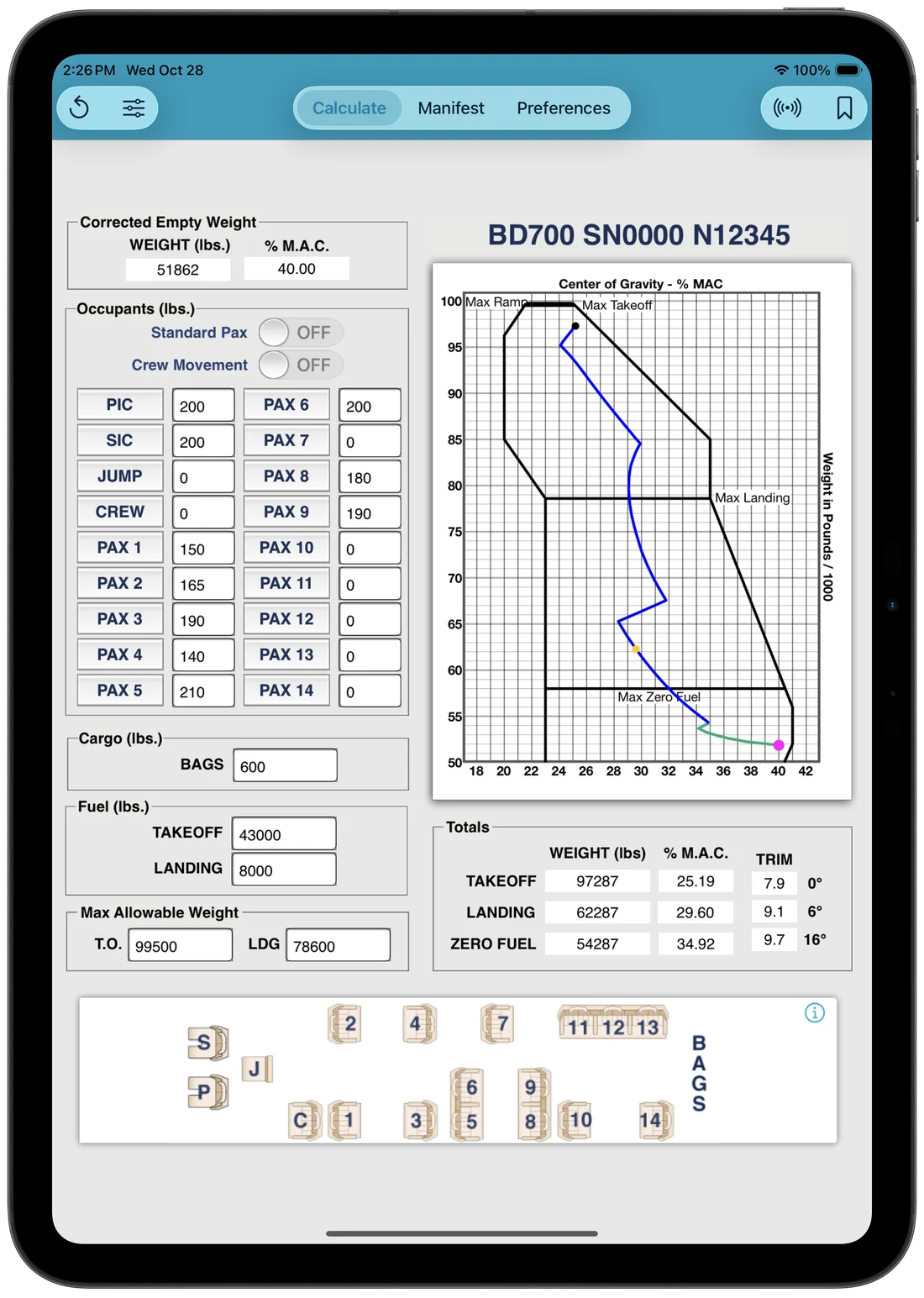
- Starting weight. Your aircraft’s basic or corrected empty weight and CG, already programmed in. Crew aren’t included, so you can enter their actual weights.
- Occupants. Tap a seat button for the standard weight, or tap the box to enter the actual weight.
- Cargo for each baggage or cargo area.
- Fuel for takeoff and landing, in weight or volume depending on the aircraft.
- Max Allowable Weight. Enter a lower takeoff or landing limit (for example, from performance). The new limit appears on the graph.
- Totals. Takeoff, landing and zero fuel weight and CG, plus trim settings on aircraft that use them.
- Interior diagram. Every labeled seat and compartment matches an entry box. Tap i for the CG data.
- Graph. Shows the load against your aircraft’s limits as you enter it. See page 6.
This is the basic empty weight plus operational items such as charts, manuals and galley supplies. Some aircraft have more than one starting weight, for example a domestic setup and an international setup with life rafts. Switch between them with .
3 · The Calculate tab
Entering weights
Type an exact weight
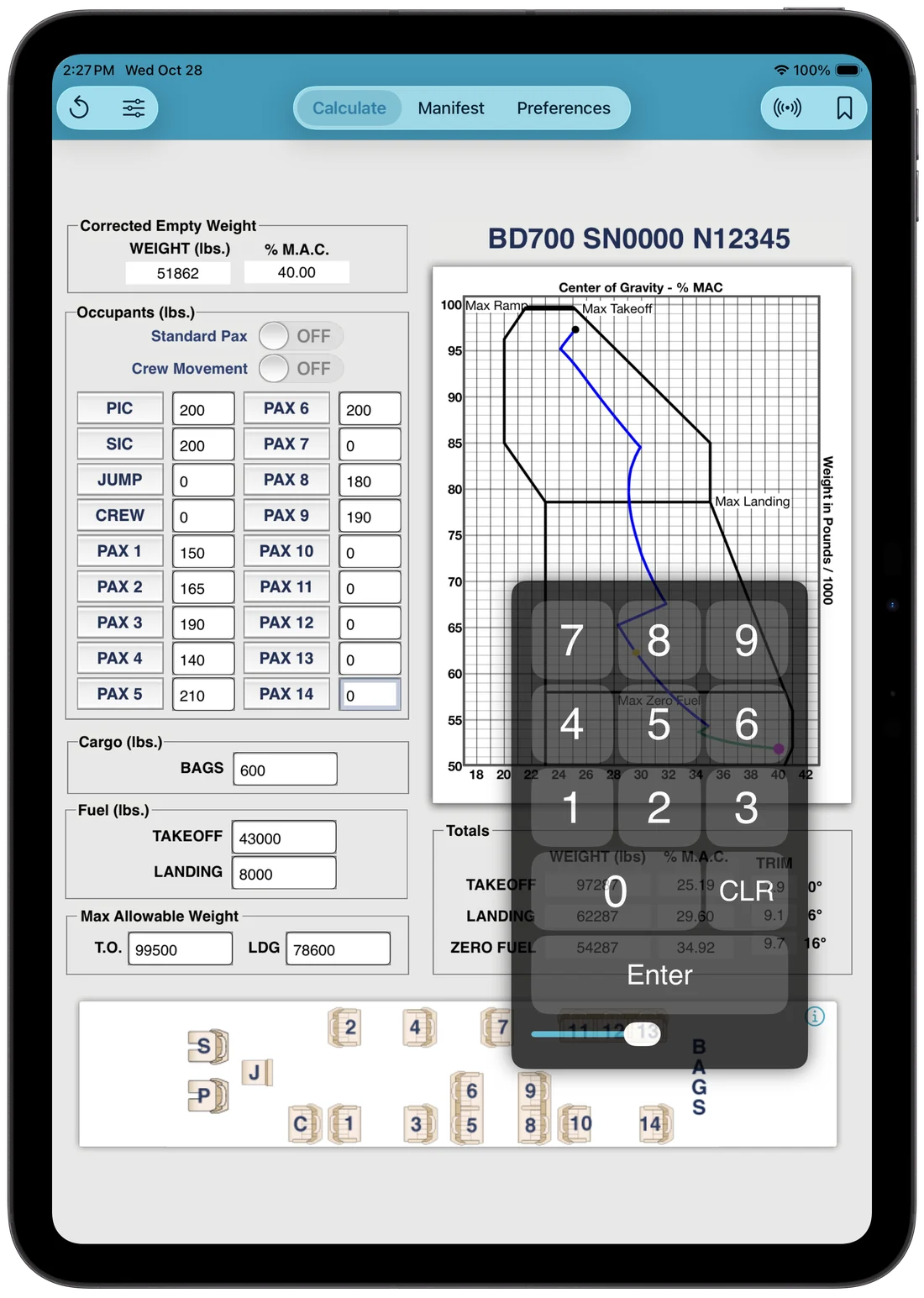
Tap any entry box to open the keypad, then tap Enter.
- Drag the keypad anywhere on the screen.
- Use the slider at the bottom to make it see-through.
- Tap anywhere outside the keypad to close it.
Pick a standard weight
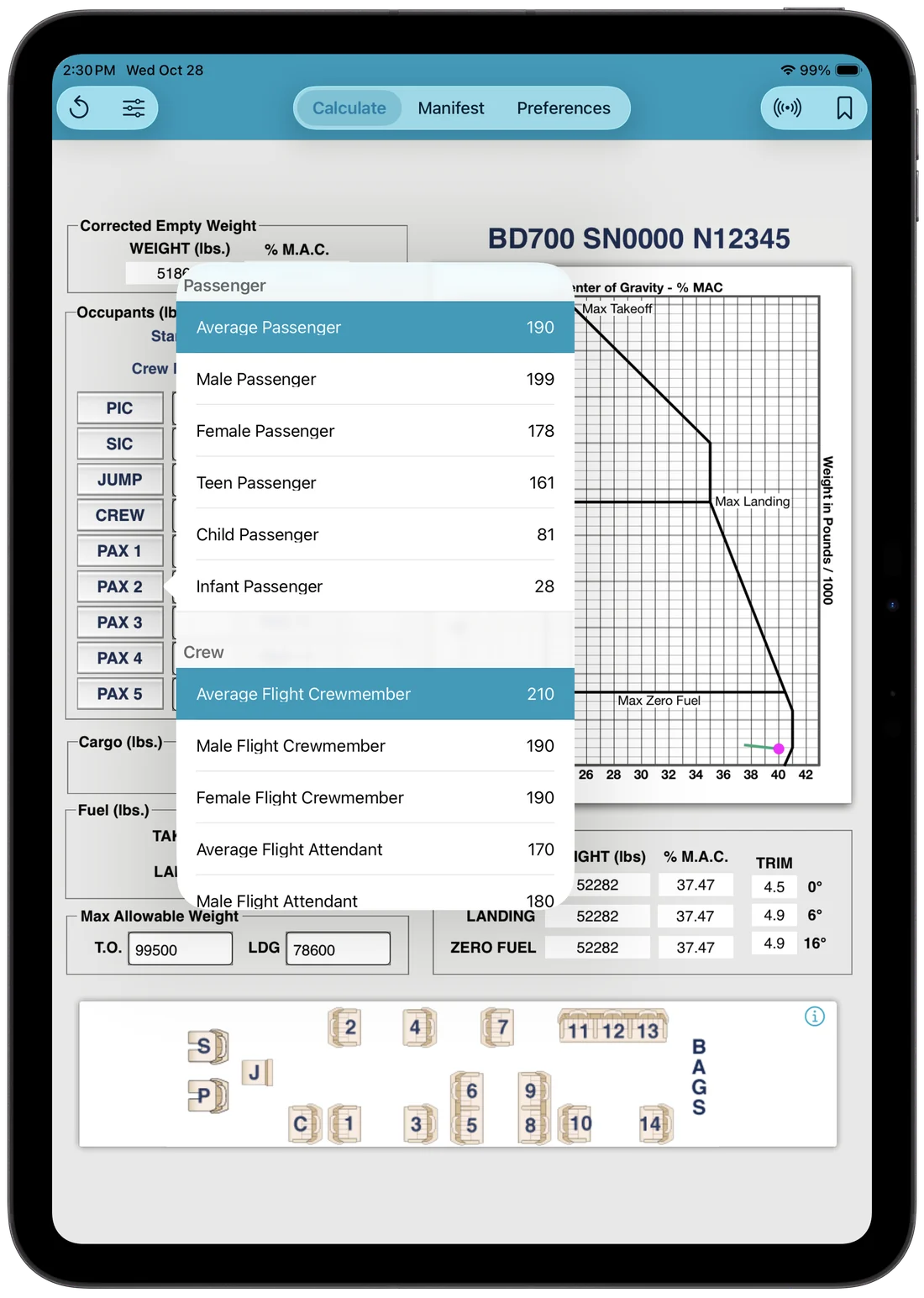
Tap a crew button to add the average crew weight, or a passenger button to add the average passenger weight.
Touch and hold a button to choose another standard weight, such as Child or Infant. Tap one to enter it.
Tip: You can change the standard weights in Preferences. See page 15.
3 · The Calculate tab
Reading the graph
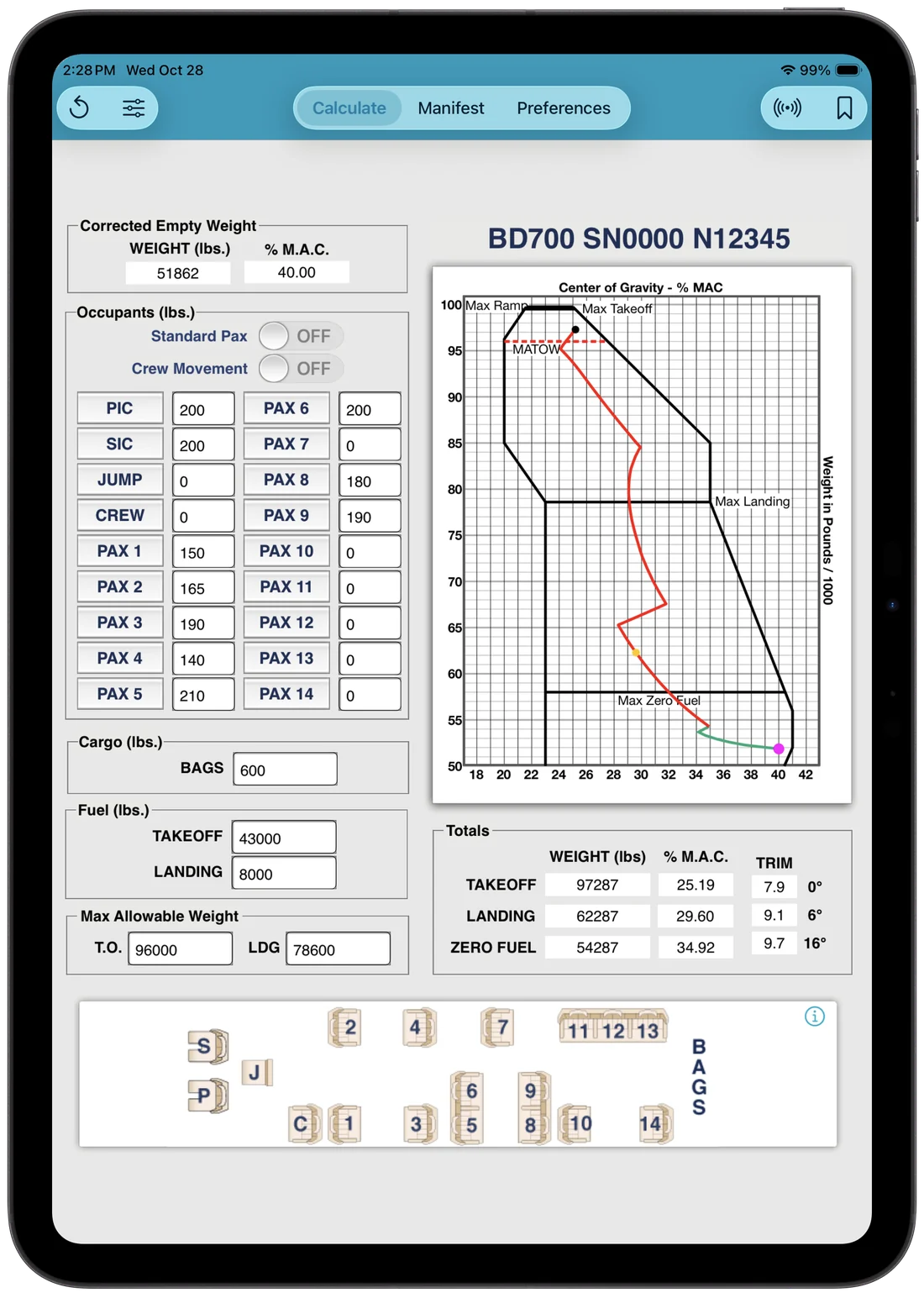
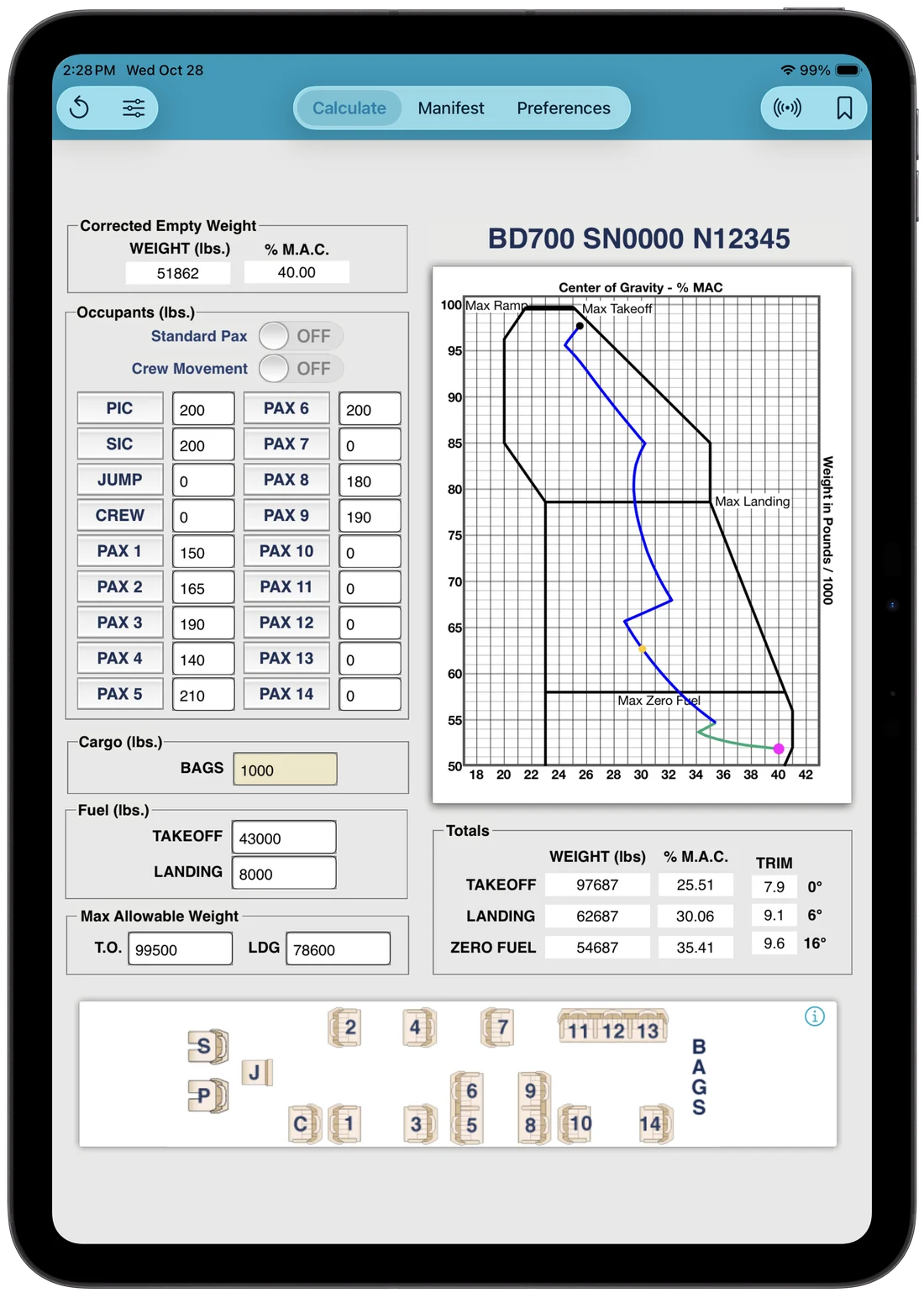
The graph draws your load as you enter it. If everything stays inside the black envelope and nothing turns red, you’re within limits.
| Magenta dot | Starting weight | |
| Green line | Zero fuel items: crew, passengers, cargo | |
| Blue line | Fuel, including the burn path on aircraft with scheduled fuel burn | |
| Black dot | Takeoff | |
| Amber dot | Landing | |
| Amber fuel line | Takeoff and landing are within limits, but part of the fuel burn crosses a CG limit. See page 8. | |
| Red fuel line and limit | Takeoff or landing is outside a weight or CG limit. The limit you’ve exceeded turns red too. |
3 · The Calculate tab
When a box turns amber
Every entry box has a maximum. If you type more than that, iFly uses the maximum instead and turns the box amber, so you know the number shown isn’t what you typed. Move the extra weight to another area; the amber clears once the entry is at or below the maximum.
Fuel you can’t count on
Sometimes takeoff and landing are fine, but the fuel line turns amber because part of the burn crosses a CG limit. Fuel in that range is ballast: it has to stay on board, so you can’t use it for endurance planning. Here’s how to find out how much.
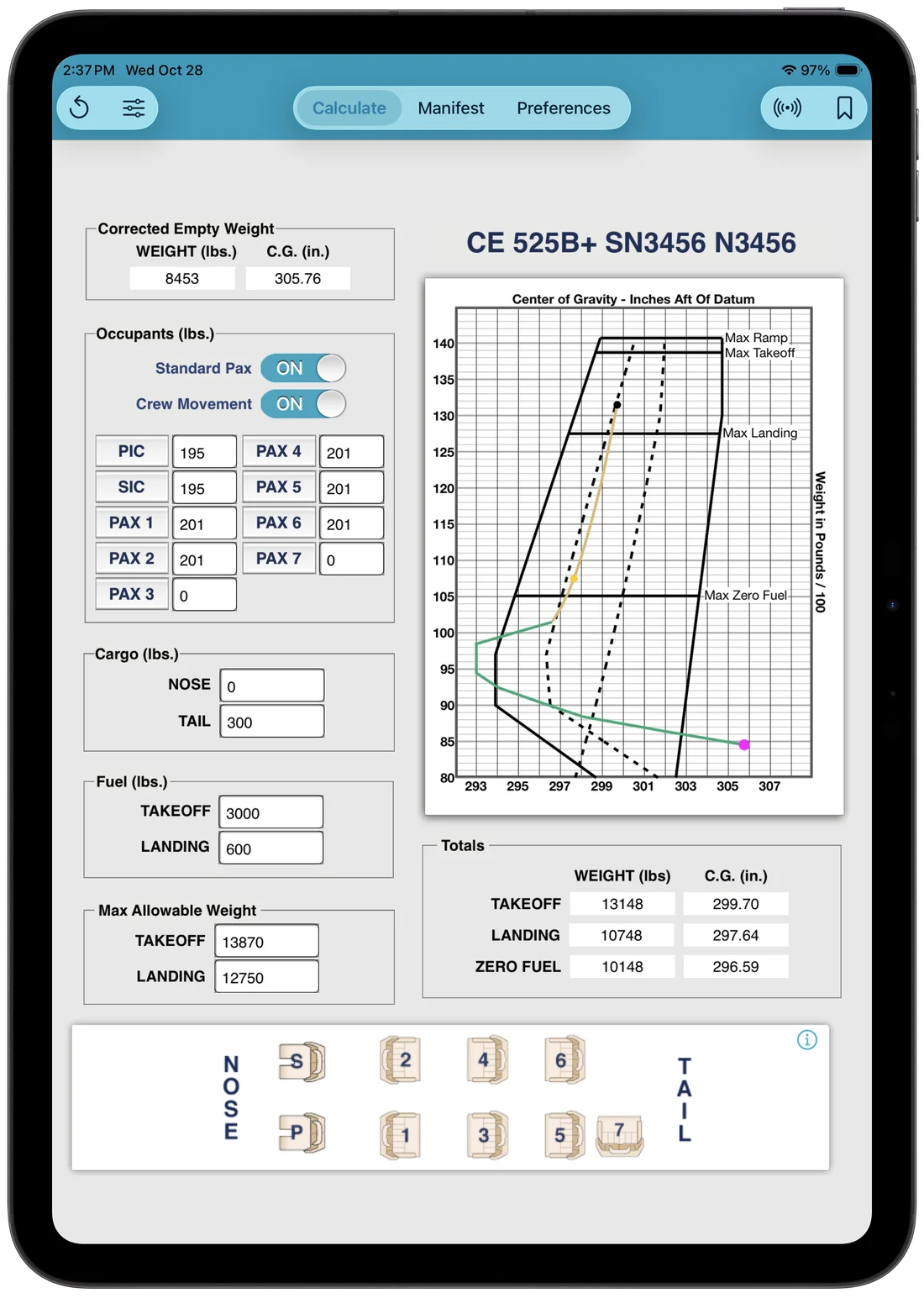
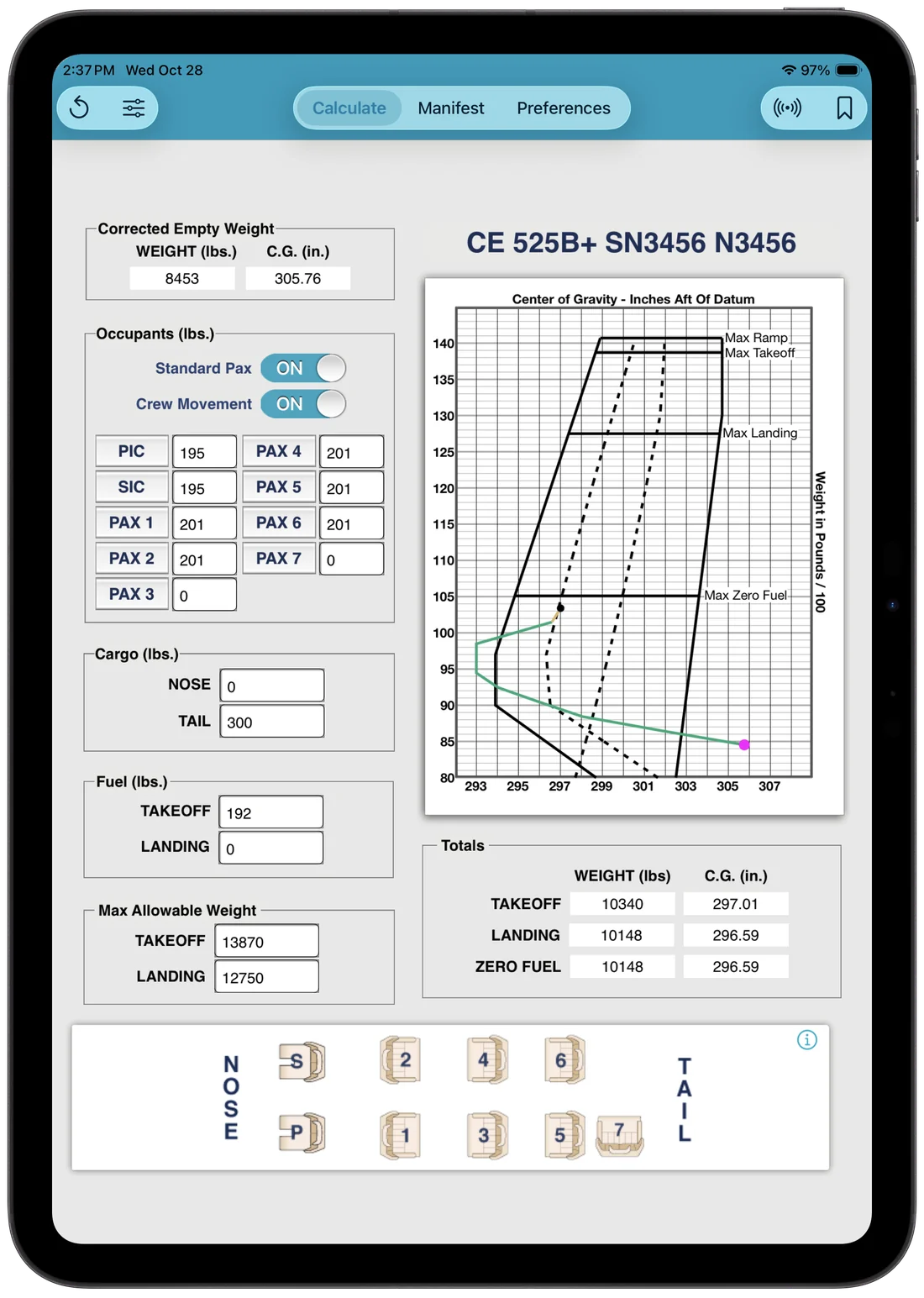
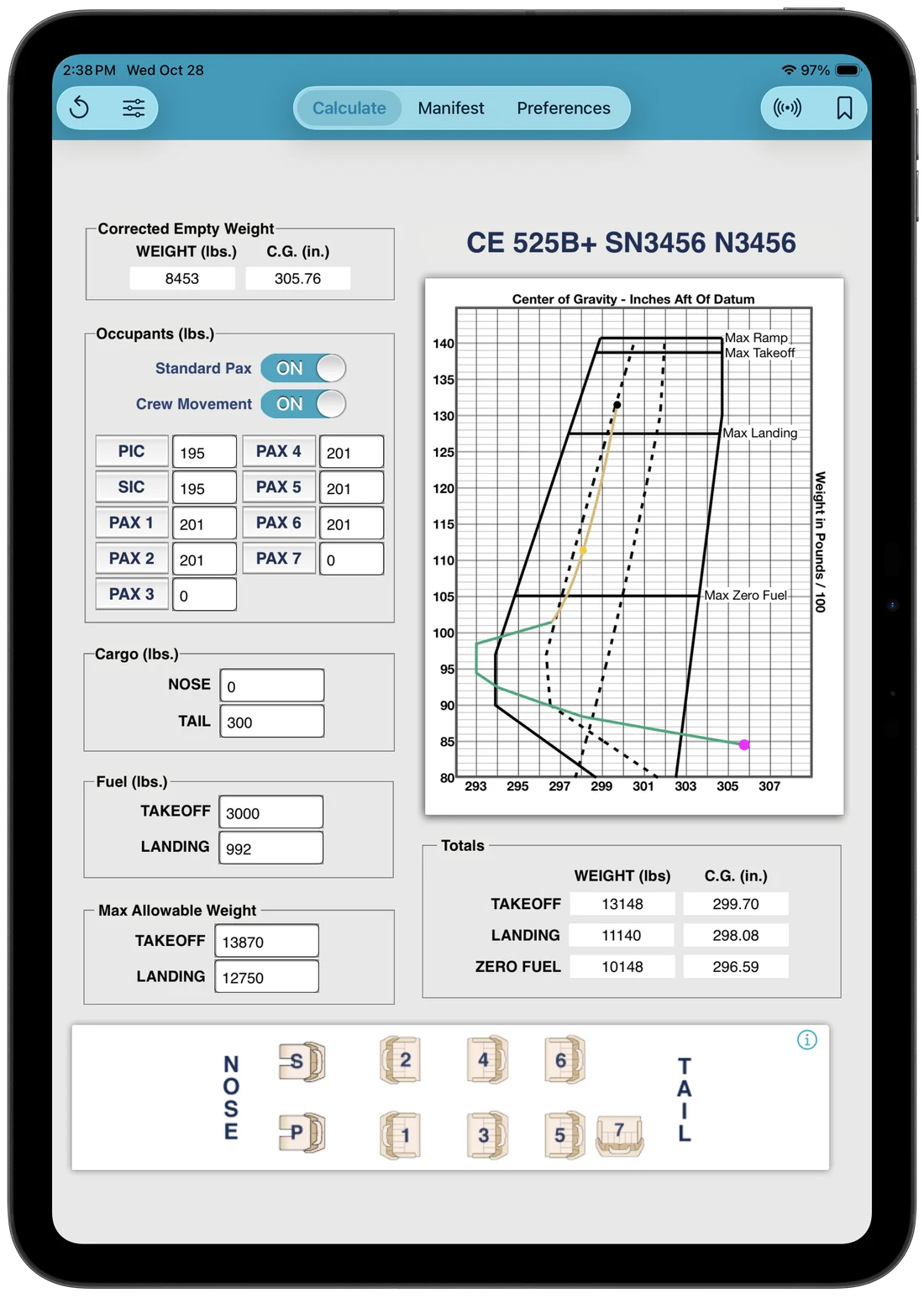
- Enter a small amount of fuel and adjust it until the lowest amount that doesn’t turn a limit red. In this example, 190 lb turns the forward limit red; 192 lb doesn’t.
- That amount is your ballast.
- Add it to the fuel you need for the flight. If the flight needs 800 lb at landing, plan for 992 lb.
3 · The Calculate tab
Presets
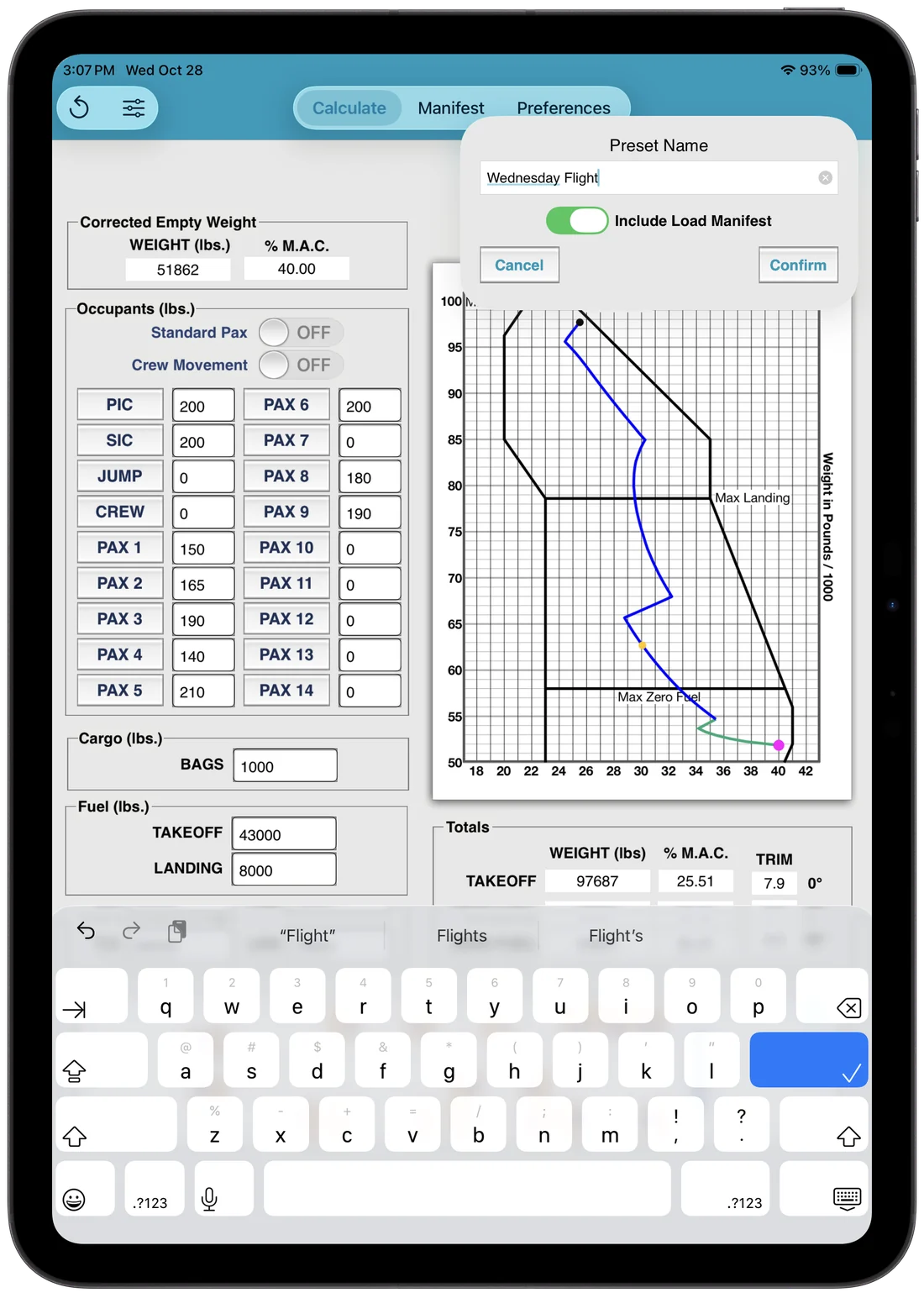
Save a loading you use often and bring it back in one tap. You can include the manifest details too.
- Enter the loading on the Calculate tab. To include manifest details, fill in the Manifest tab as well.
- Tap and type a name.
- Turn on Include Load Manifest to save the Manifest tab with the preset. New
- Tap Confirm.
- Later, tap and pick the preset. The loading, and the manifest details if you included them, come back.
 3
3
Include Load Manifest saves the fields on the standard iFly load manifest. If your aircraft uses a customized manifest, some fields may not be saved. Check the Manifest tab after you recall a preset.
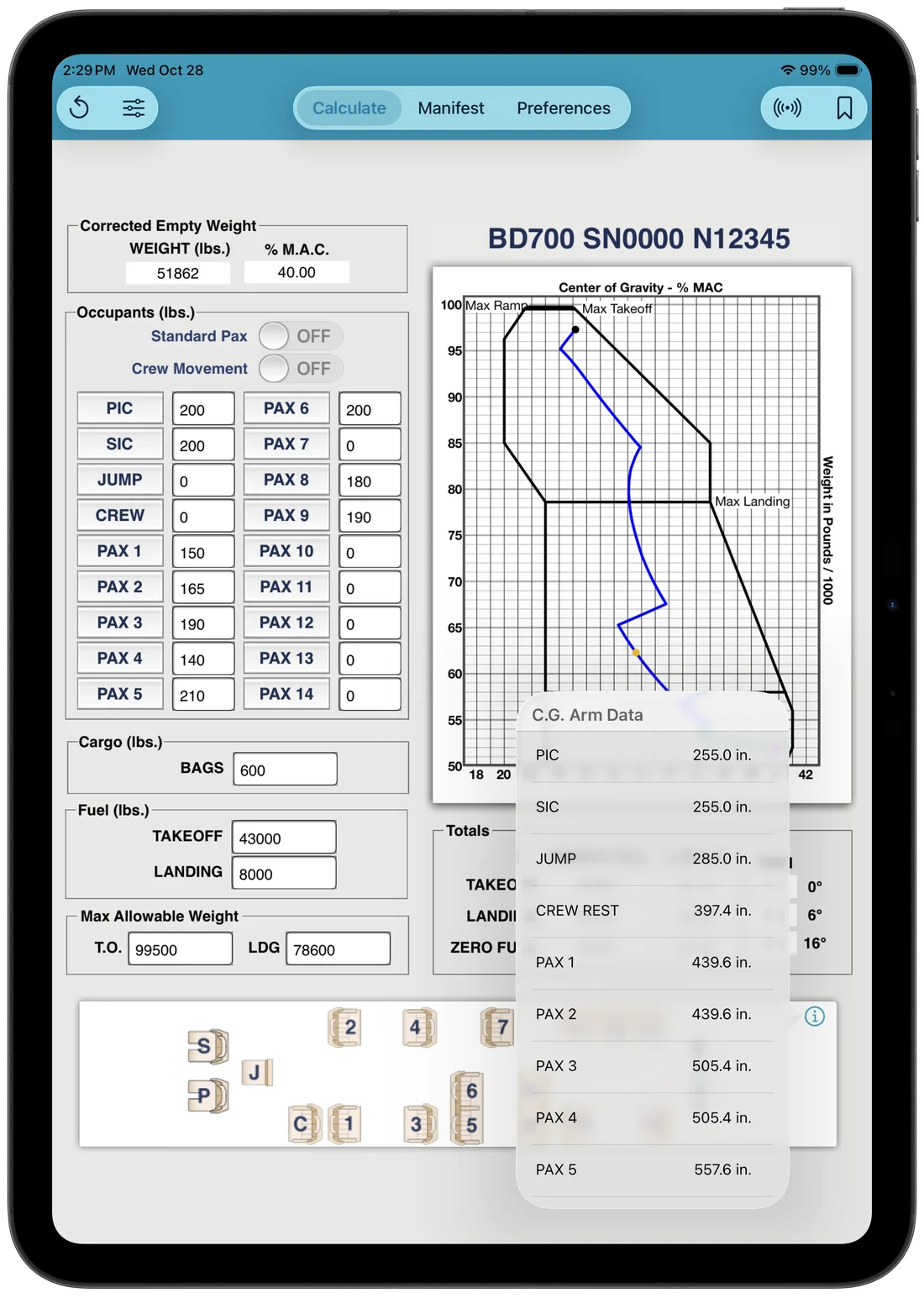
See the CG data
The arms used for every seat and compartment are always one tap away. Tap i in the corner of the interior diagram. Tap anywhere outside the pop-up to close it.
4 · Sync to Device New
Send a loading to another device
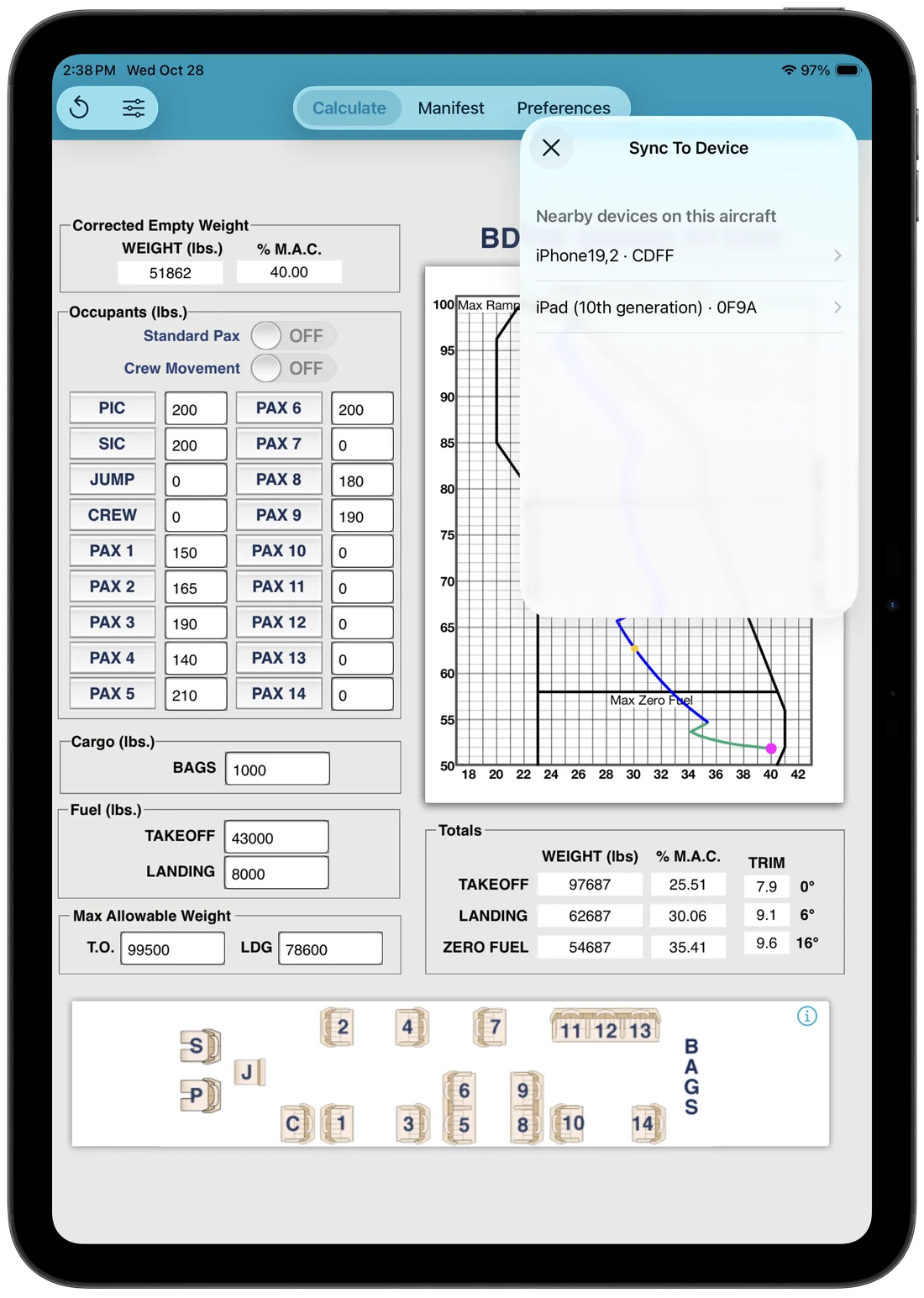
One pilot builds the load; the other gets it on their own iPad or iPhone. No retyping.
- On the Calculate tab, finish entering the loading.
- Tap . The Sync To Device panel lists nearby devices that are set to this aircraft.
- Tap the device to send to. Each one shows its model and a short code, so you can tell two iPads apart.
- On the other device, check that the loading matches before you fly.
- Make sure iFly is open on it.
- Check that both devices have the same aircraft selected in Preferences.
- Keep the devices close together, with Wi-Fi and Bluetooth turned on.
Tap ✕ to close the panel without sending anything.
 1
2
1
2
5 · Load manifests
Complete and sign
When the calculation is done, open the Manifest tab.
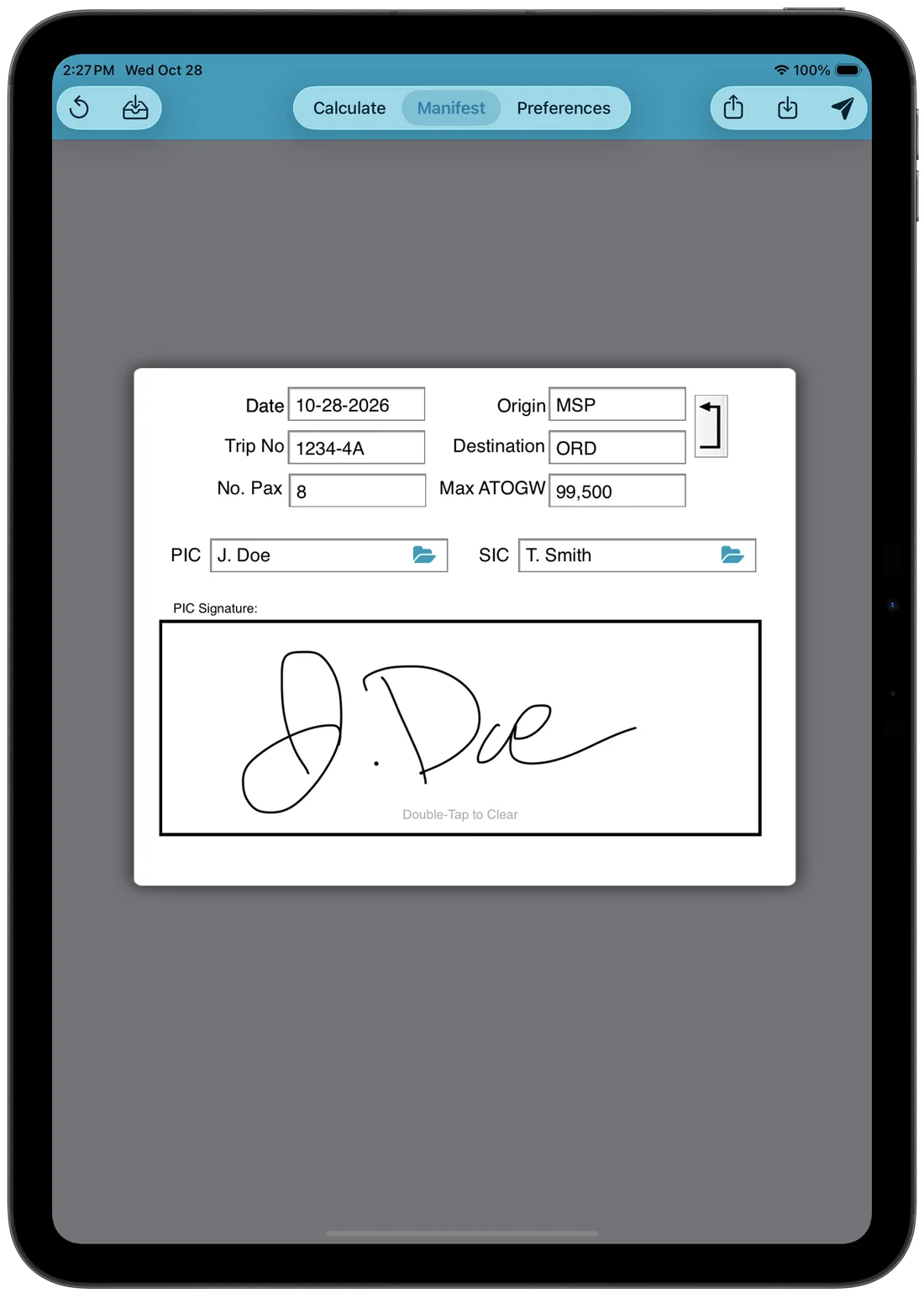
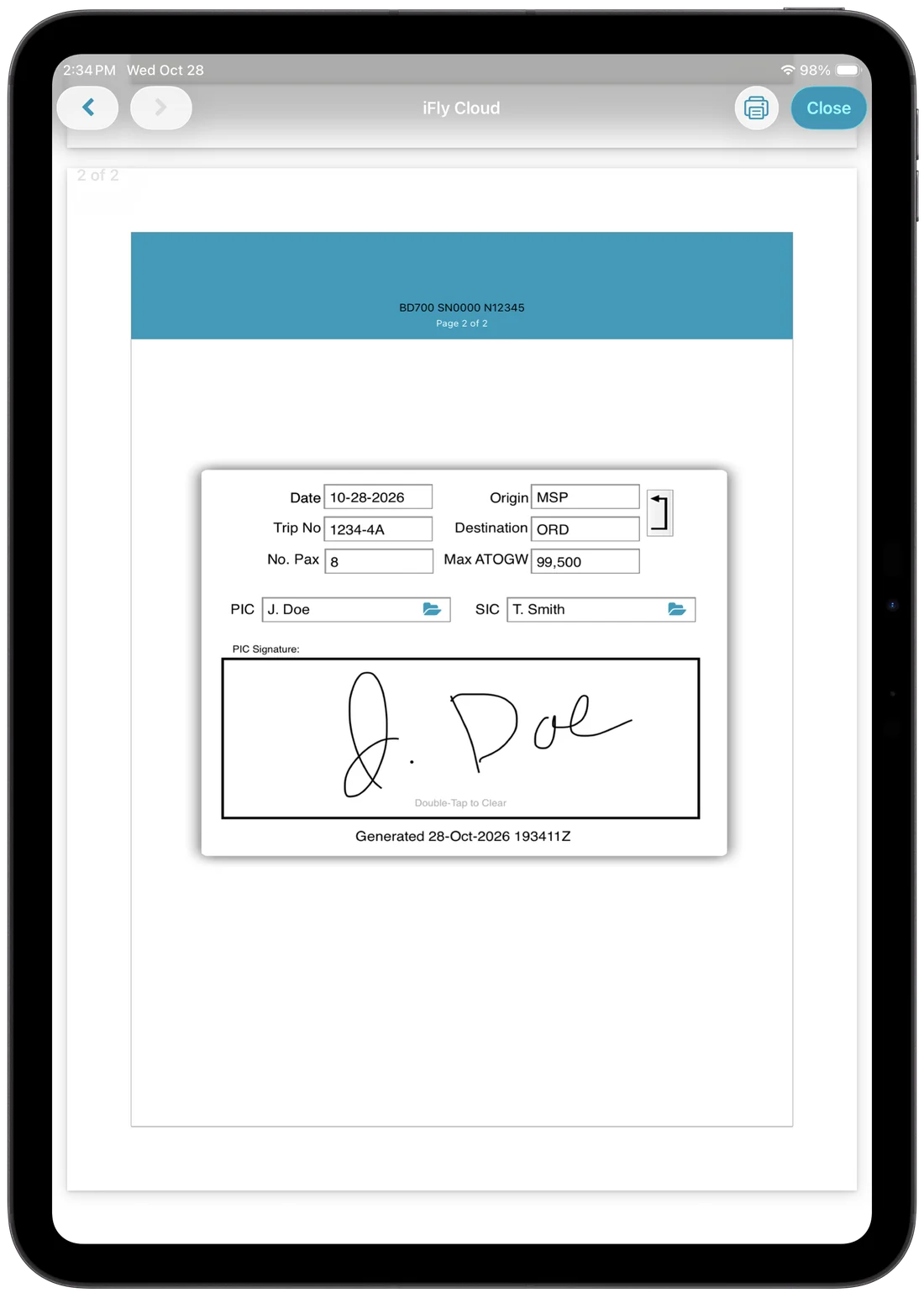
- Trip details. Date, trip number, origin, destination and number of passengers. Max ATOGW fills in from the Calculate tab.
- Crew. PIC and SIC fill in from Preferences. Tap the folder to choose a different name.
- Signature. Sign with your finger or Apple Pencil. Double-tap to clear.
Three ways to send it
| Send | Opens an email to your saved addresses with the manifest PDF attached and the key numbers in the message. |
| Share | Print it, AirDrop it, or open it in any app that handles PDFs. |
| Save | Saves it to iFly Cloud only. |
All three save to iFly Cloud, so there’s always a record.
1
2
3
5 · Load manifests
Email or share
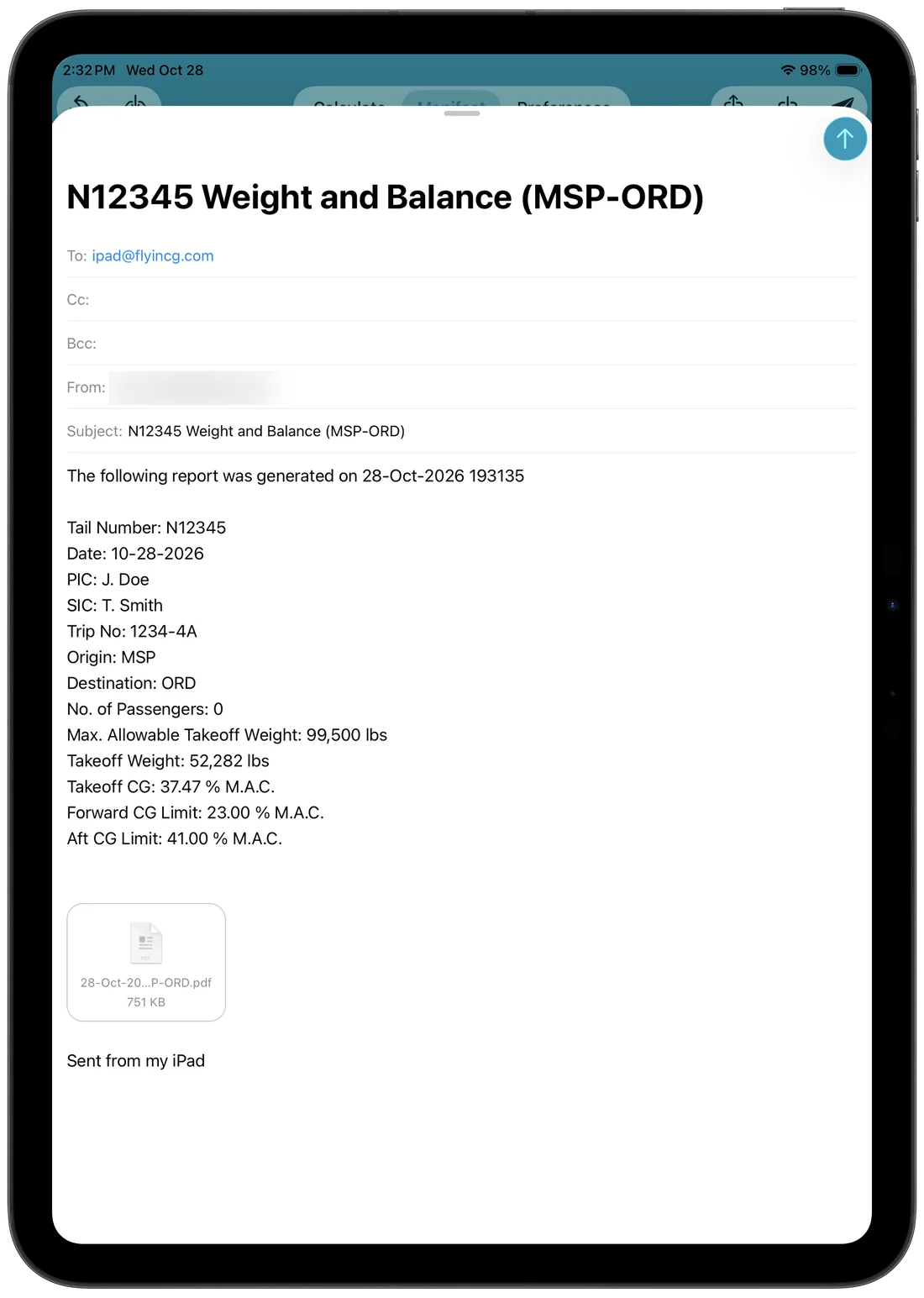
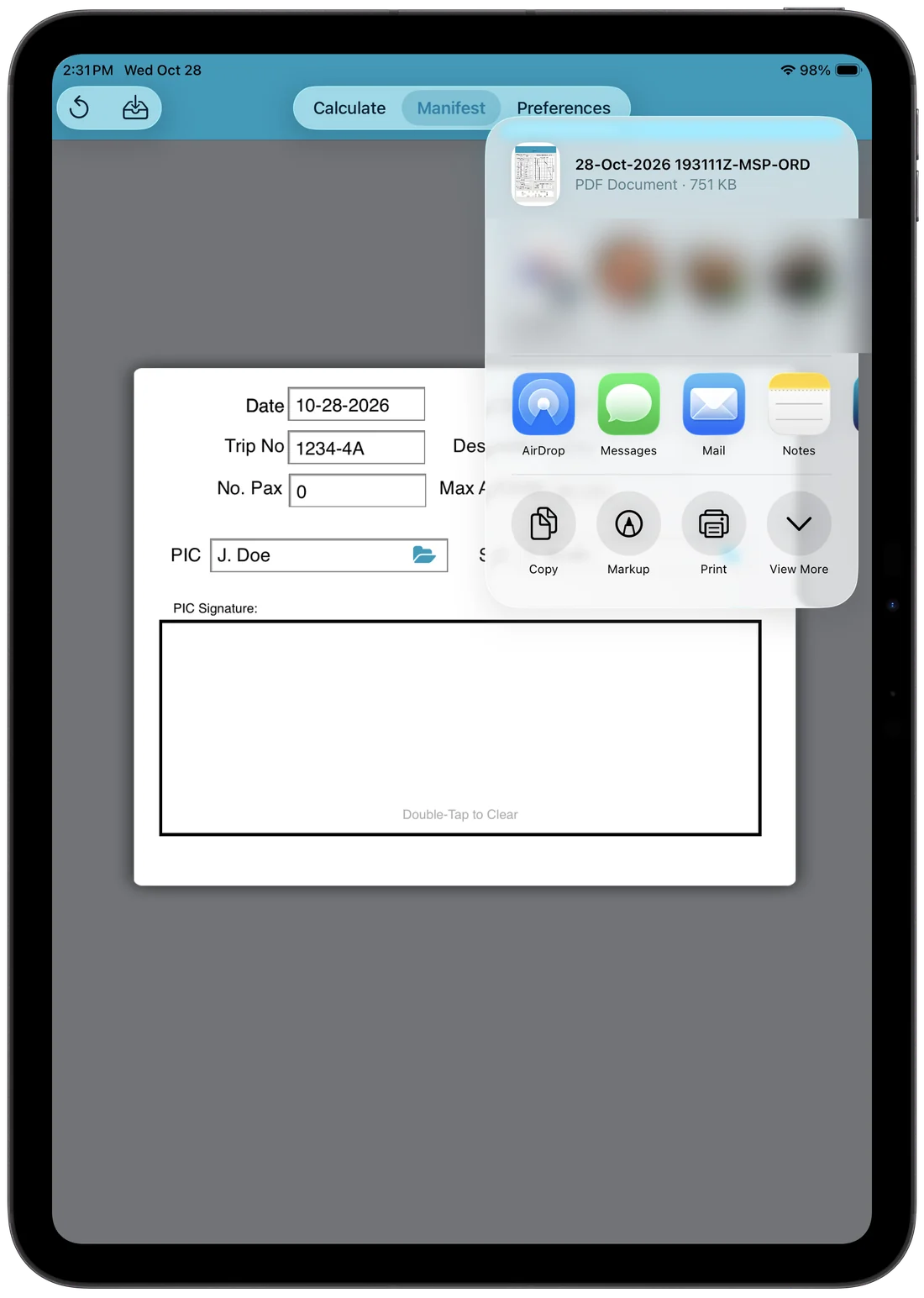
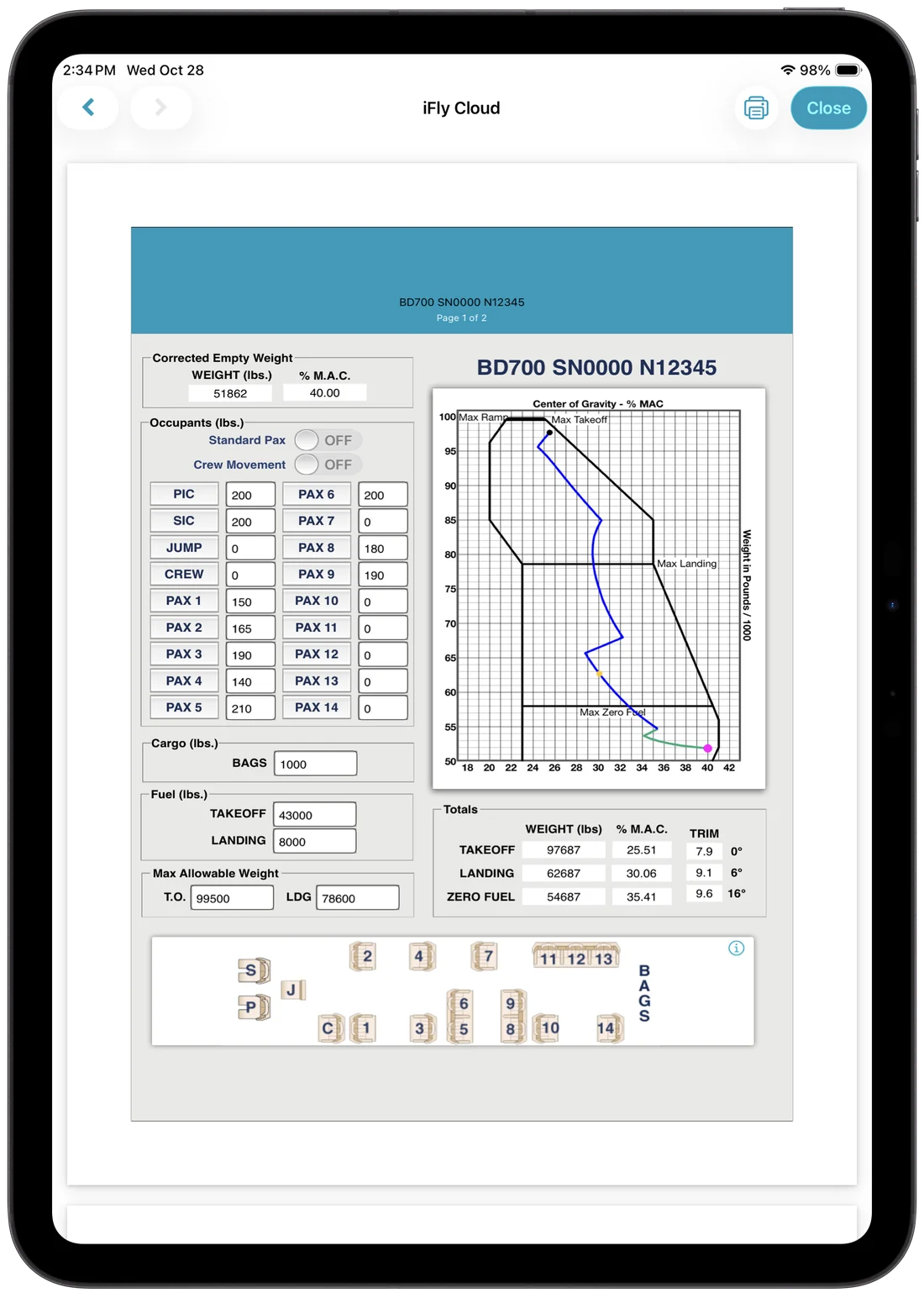
The PDF has two pages: the Calculate tab and the signed Manifest tab.
5 · Load manifests
Find, re-send and check saved manifests
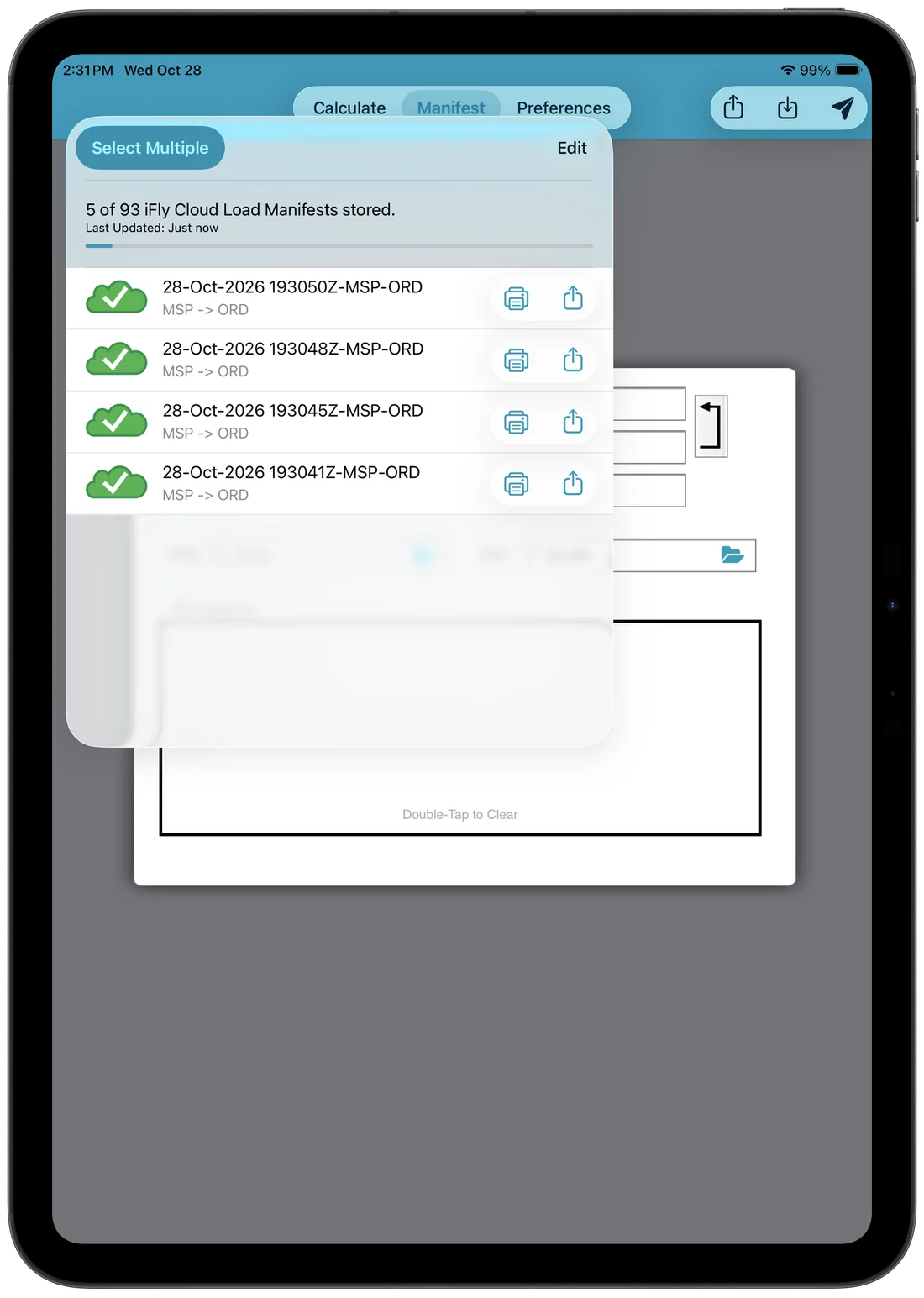
Tap on the Manifest tab to see every manifest saved on this device.
- Re-send one: tap the manifest, or use the print and share buttons on its row.
- Re-send several: tap Select Multiple, choose them, then send.
- Check iFly Cloud: a green check means the manifest is safely in iFly Cloud.
The top of the list shows how many manifests are stored in iFly Cloud and when the list last updated.
Good to know: Manifests stay on the device for the time you set in Preferences (30 days by default), then are removed automatically. They stay in iFly Cloud.
6 · iFly Cloud
Your manifests and documents, anywhere
iFly Cloud keeps every manifest you send or save, along with documents that support your weight and balance.
From the app
Go to Preferences and tap iFly Cloud. You’ll need an internet connection.
From a browser
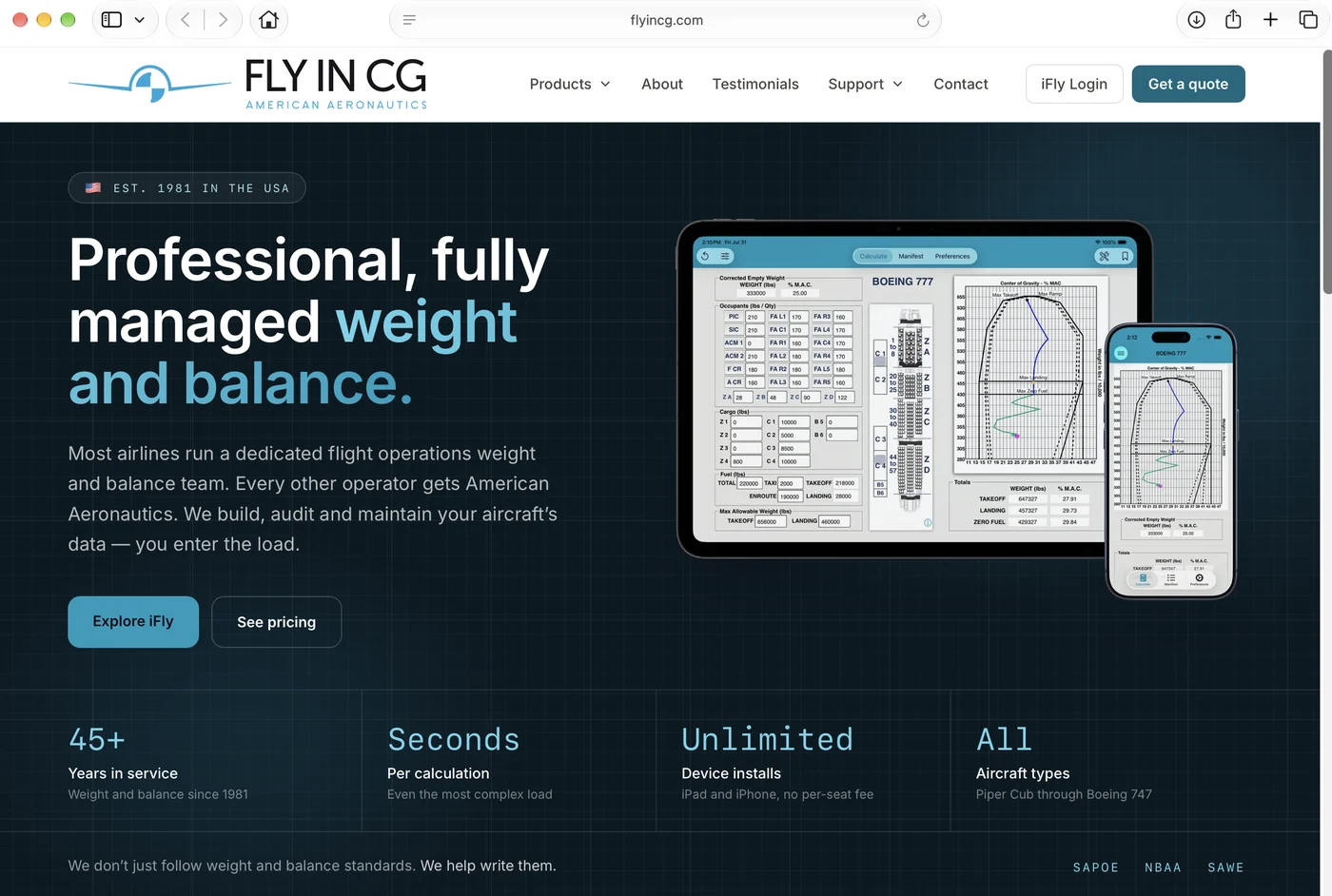
Go to flyincg.com, click iFly Login, and sign in with the same username and password you use in the app.
 ↑
↑
In iFly Cloud, tap a manifest to view it, or use its actions button to download it. Administrators can also delete manifests.
7 · Preferences
Set it up once
 1
2
3
4
5
6
7
8
9
10
1
2
3
4
5
6
7
8
9
10
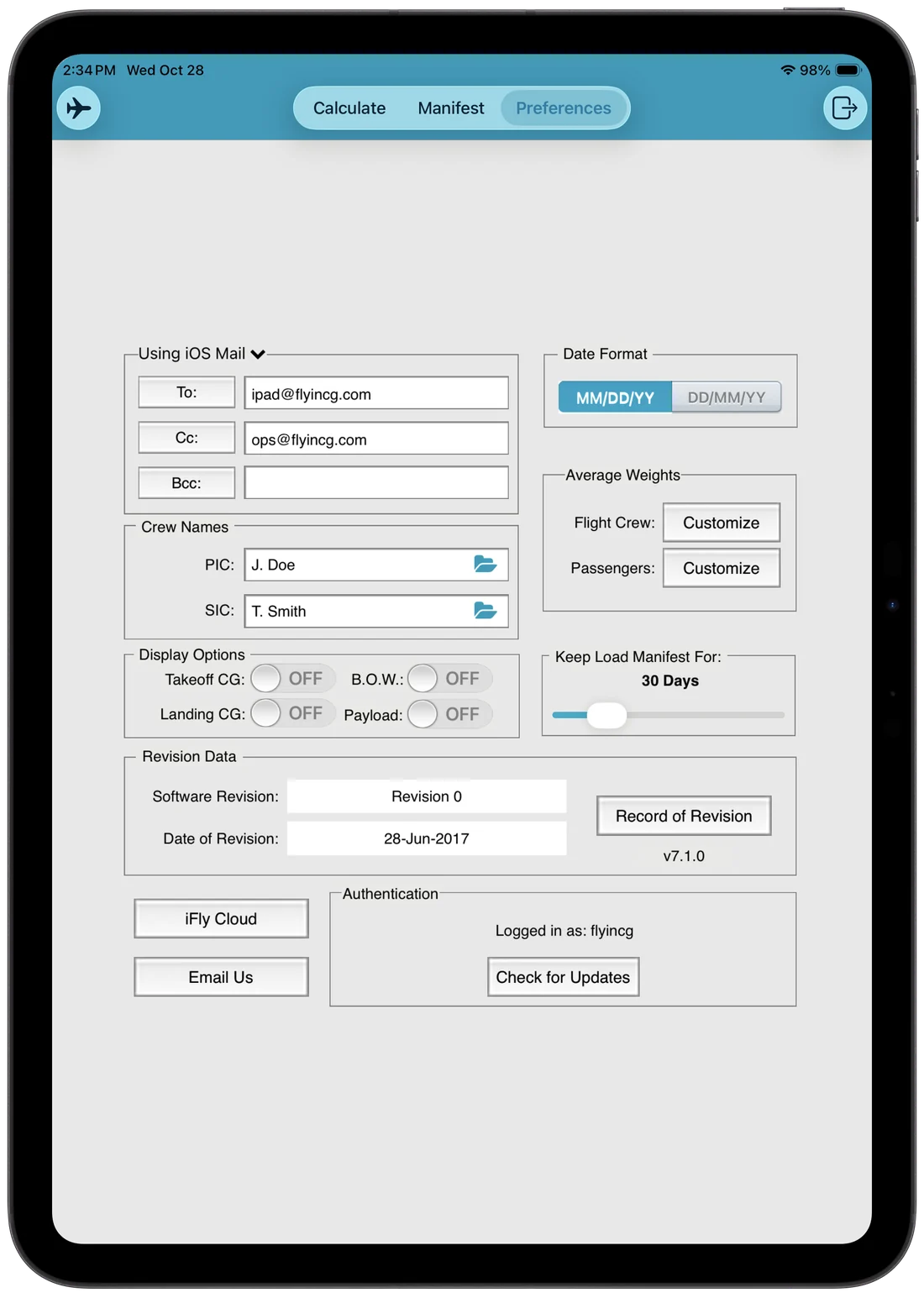
- Email. To, Cc and Bcc addresses added to every manifest email.
- Crew Names. PIC and SIC names that fill in on the manifest.
- Display Options. Show the forward and aft takeoff or landing CG, the BOW (empty weight plus crew), or payload on the graph. Handy when copying numbers to a paper manifest.
- Revision Data. The current data revision for this aircraft. Tap Record of Revision for the history.
- iFly Cloud. Opens iFly Cloud, with documents and administrator tools.
- Email Us. Contact American Aeronautics.
- Authentication. Shows who’s logged in. Tap Check for Updates to check now; iFly also checks every time it opens.
- Date Format. MM/DD/YY or DD/MM/YY on the manifest.
- Average Weights. Tap Customize to set standard weights.
- Keep Load Manifest For. How long manifests stay on the device. The default is 30 days.
7 · Preferences
Standard weights
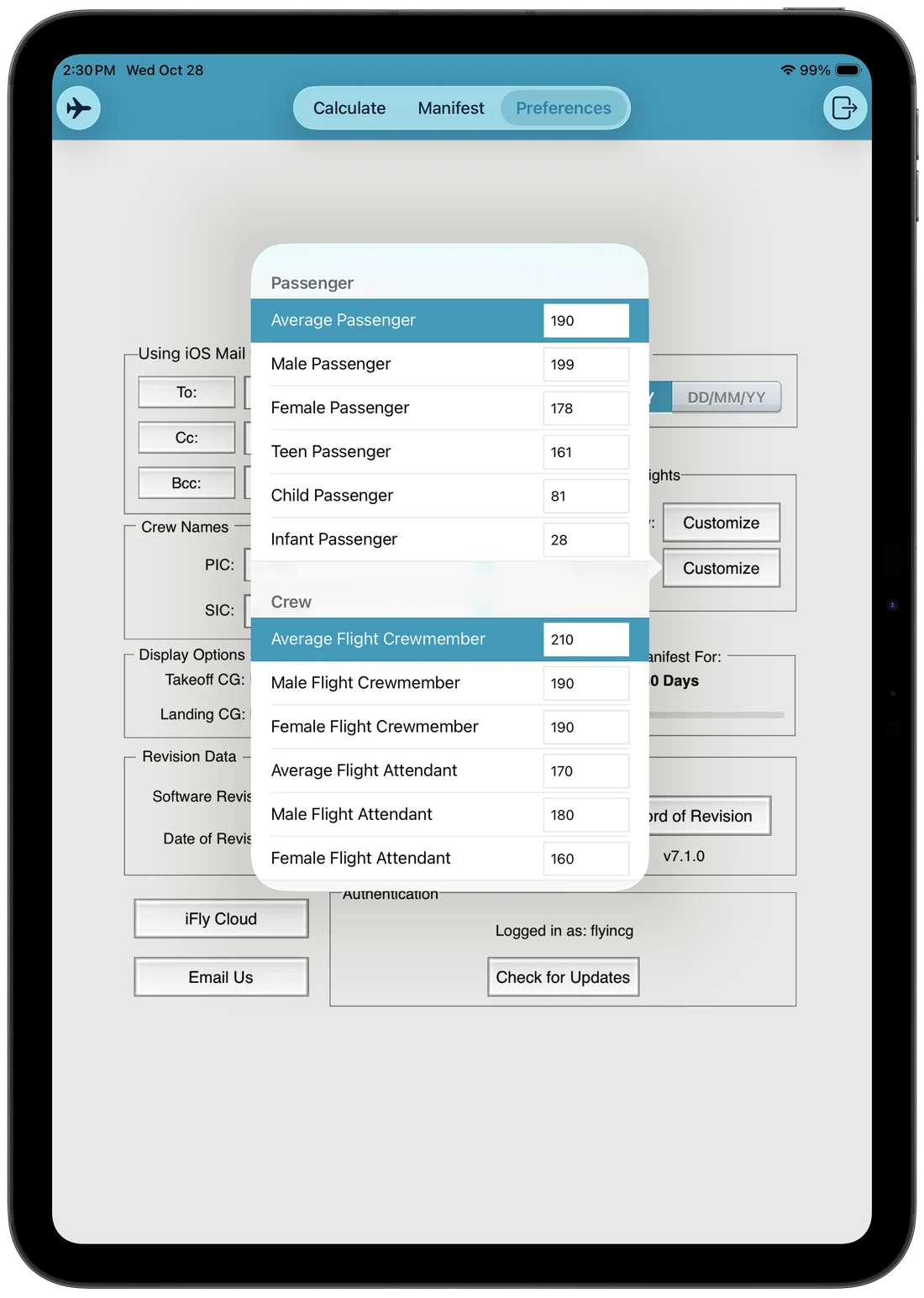
Tap either Customize button under Average Weights and enter a weight for each type.
The highlighted rows, Average Passenger and Average Flight Crewmember, are what a single tap on a seat button enters. Usually they’re the average of the male and female weights, but iFly doesn’t calculate them for you; enter them yourself.
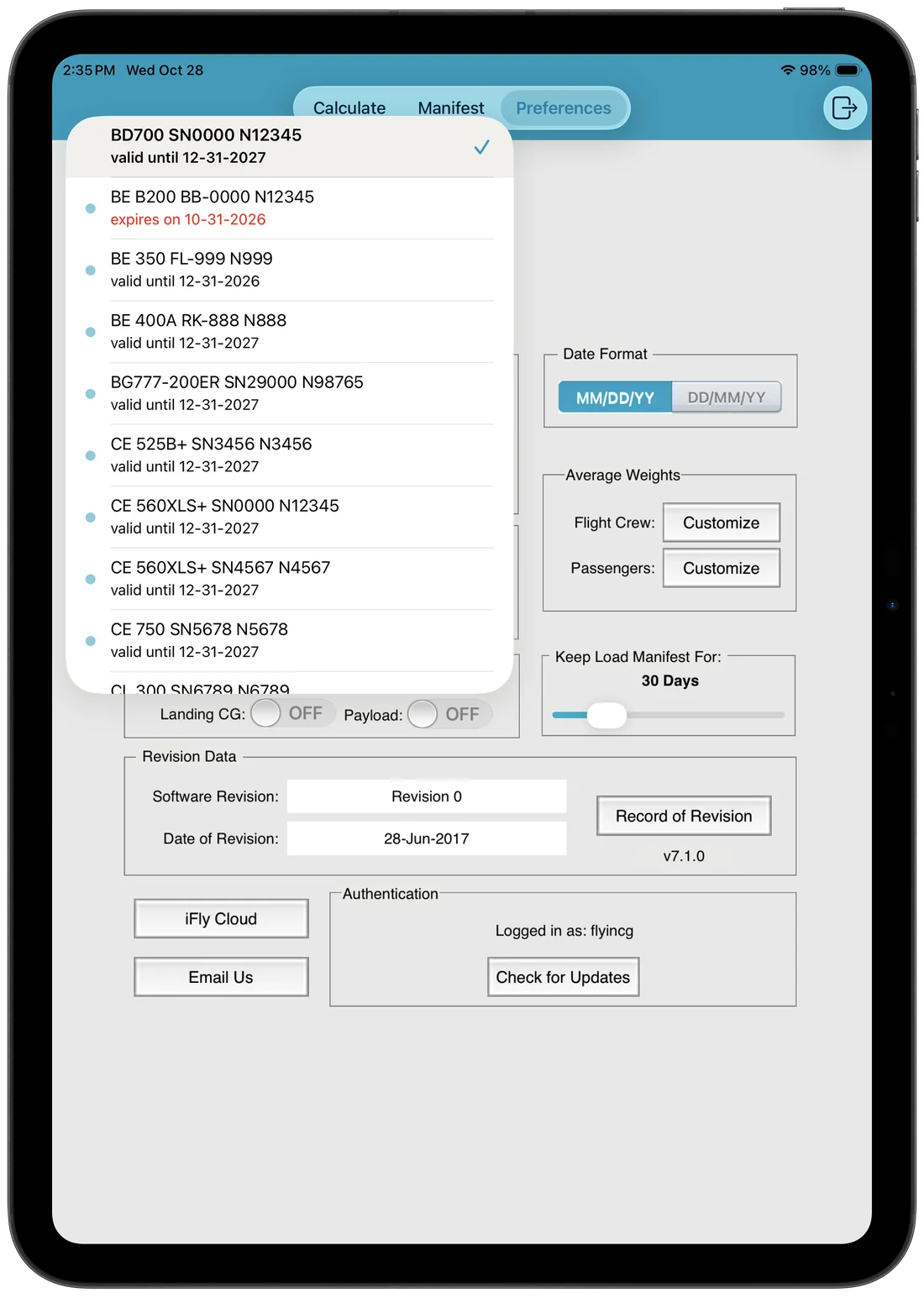
Switch aircraft
If your account has more than one aircraft, tap and choose one. Each shows its type, serial number, registration and expiration date.
- A blue dot means that aircraft’s data was recently updated. It clears once you select it.
- Dates in red are expiring soon.
8 · Quick answers
Something look off?
- An entry box turned amber.
- You entered more than that area’s maximum, so iFly is using the maximum. Move the extra weight elsewhere.
- The fuel line is amber.
- Takeoff and landing are fine, but part of the fuel burn crosses a CG limit. That fuel is ballast. See page 8.
- The fuel line and a limit are red.
- Takeoff or landing is outside a limit. Change the load until nothing is red.
- A manifest doesn’t have a green check.
- It hasn’t reached iFly Cloud yet. Connect to the internet and open the Load Manifests list again.
- The other device doesn’t show up in Sync To Device.
- Open iFly on it, select the same aircraft, and keep the devices close together. See page 9.
- The aircraft data looks out of date.
- Go to Preferences and tap Check for Updates.
- A preset didn’t fill in the manifest.
- Turn on Include Load Manifest when you save the preset. With a customized manifest, some fields may not be saved, so check the Manifest tab before sending.
FLY IN CG
American Aeronautics
456 Barron Boulevard, Grayslake, IL 60030
1-800-FLY-IN-CG (359-4624) · 847-459-5801 · fax 847-459-5802
www.flyincg.com · order@flyincg.com
iPad, iPhone, App Store and AirDrop are trademarks of Apple Inc., registered in the U.S. and other countries and regions. Revision 28OCT26.